【技术分享】强制刷新文件夹属性(desktop.ini)缓存的方法展示(最新方法)
由于Windows文件夹属性的缓存机制,通过脚本修改desktop.ini文件后,desktop.ini中的属性并不会立马生效,普通F5刷新也不会起到任何作用,经过大量实验与诸多大佬共研后,终于找到解决方法。
现公开我寻找到的解决方法,以便各位搞开发的朋友使用,需要强制刷新文件夹属性缓存的朋友,可以直接看这,免去下载动作慢慢研究浪费的时间。
常规方法:
- 等待3~5分钟后,文件资源管理器自动刷新文件夹属性缓存:
非常好的方法(狗头) - 重启explorer.exe进程(文件资源管理器):
该方法会造成部分程序和进程中断,影响范围过大。 - 更改“日期与设置”(ms-settings:dateandtime)中更改系统时间:
还是一样的问题,会造成部分程序和进程出现错误(比如搜狗输入法),影响范围过大。 - 进入文件夹的属性窗口,在“自定义”选项卡中点击确定(无需更改设置,直接点击确定即可):
影响范围小,但是太麻烦,唤醒文件夹的属性窗口只能通过模拟键盘操作或PowerShell(并且该方法还会导致PowerShell占用并锁定文件夹)
Start-Process powershell -ArgumentList "-NoExit", "-Command", "(New-Object -ComObject Shell.Application).Namespace('要打开属性窗口的路径').Self.InvokeVerb('Properties')" - 老方法(相对可用,通过反复创建和移动文件来实现,但整体实现步骤过于繁琐,且效率过低):【技术分享】强制刷新文件夹属性(desktop.ini)缓存的方法展示(此贴已过时) - Quicker
完美解决方法(来自于 AzureHearted 大佬,经我个人修改调整后发布)
核心代码(C#):
//.cs
//通过调用 SHGetSetFolderCustomSettings 函数并将 Logo 字段设置为空字符串,来触发Windows文件夹的视图属性缓存的刷新

using System;
using System.IO;
using System.Runtime.InteropServices;

public static void Exec(Quicker.Public.IStepContext context)
{

    //读取 Quicker 变量
    string folderPath = context.GetVarValue("文件夹路径") as string;
    if (string.IsNullOrEmpty(folderPath)) return;

    // 为文件夹添加只读属性,以确保被文件资源管理器进程正常执行。
    DirectoryInfo di = new DirectoryInfo(folderPath);
    if ((di.Attributes & FileAttributes.ReadOnly) != FileAttributes.ReadOnly)
    {
        di.Attributes |= FileAttributes.ReadOnly;
    }

    // 初始化结构体
    SHFOLDERCUSTOMSETTINGS settings = new SHFOLDERCUSTOMSETTINGS();
    settings.dwSize = (uint)Marshal.SizeOf(settings);

    //写入字段声明(0x20 = FCSM_LOGO)
    settings.dwMask = 0x00000020;

    // 将封面图路径及索引设置为空
    settings.pszLogo = "";
    settings.cchLogo = 0;

    // 调用SHGetSetFolderCustomSettings,促使Windows文件夹的视图属性缓存的刷新
    SHGetSetFolderCustomSettings(ref settings, folderPath, 2);

    // 发送 Shell 变更通知,促使父级视图重绘该项
    IntPtr ptrPath = Marshal.StringToHGlobalUni(folderPath);
    SHChangeNotify(0x00002000, 0x0005, ptrPath, IntPtr.Zero);
    Marshal.FreeHGlobal(ptrPath);
}

[StructLayout(LayoutKind.Sequential, CharSet = CharSet.Auto)]
public struct SHFOLDERCUSTOMSETTINGS
{
    // 结构体大小(必须设置)
    public uint dwSize;

    // 掩码:声明要写哪些字段
    public uint dwMask;

    // 视图ID(VID / GUID 指针)
    public IntPtr pvid;

    // WebView 模板相关
    public string pszWebViewTemplate;
    public uint cchWebViewTemplate;
    public string pszWebViewTemplateVersion;

    // 悬停提示 InfoTip
    public string pszInfoTip;
    public uint cchInfoTip;

    // 自定义 CLSID(GUID 指针)
    public IntPtr pclsid;

    // 额外标志位
    public uint dwFlags;

    // 图标相关(IconFile + Index)
    public string pszIconFile;
    public uint cchIconFile;
    public int iIconIndex;

    // 封面图 Logo
    public string pszLogo;
    public uint cchLogo;
}

[DllImport("shell32.dll", CharSet = CharSet.Auto)]
public static extern uint SHGetSetFolderCustomSettings(ref SHFOLDERCUSTOMSETTINGS pfcs, string pszPath, uint dwReadWrite);

[DllImport("shell32.dll", CharSet = CharSet.Auto)]
public static extern void SHChangeNotify(uint wEventId, uint uFlags, IntPtr dwItem1, IntPtr dwItem2);
核心原理其实就是通过调用 SHGetSetFolderCustomSettings 函数 (shlobj_core.h) - Win32 apps | Microsoft Learn 这个函数(此函数信息来源于AzureHearted 大佬)。
此函数可以读写并即时刷新desktop.ini内的几个指定属性(不全),但是经过本人测试,此API在写入任意属性后,都可以立即刷新文件夹的外观,无需任何额外操作,非常好用。
(目前方案采用的是写入文件夹的“封面”属性为空,此属性在Windows XP以后版本已停止支持,在XP中也仅为在文件夹出于超大视图时,显示指定图片。各位如果介意的话也可以先读取原有属性再写入原有属性,这将会略微牺牲性能)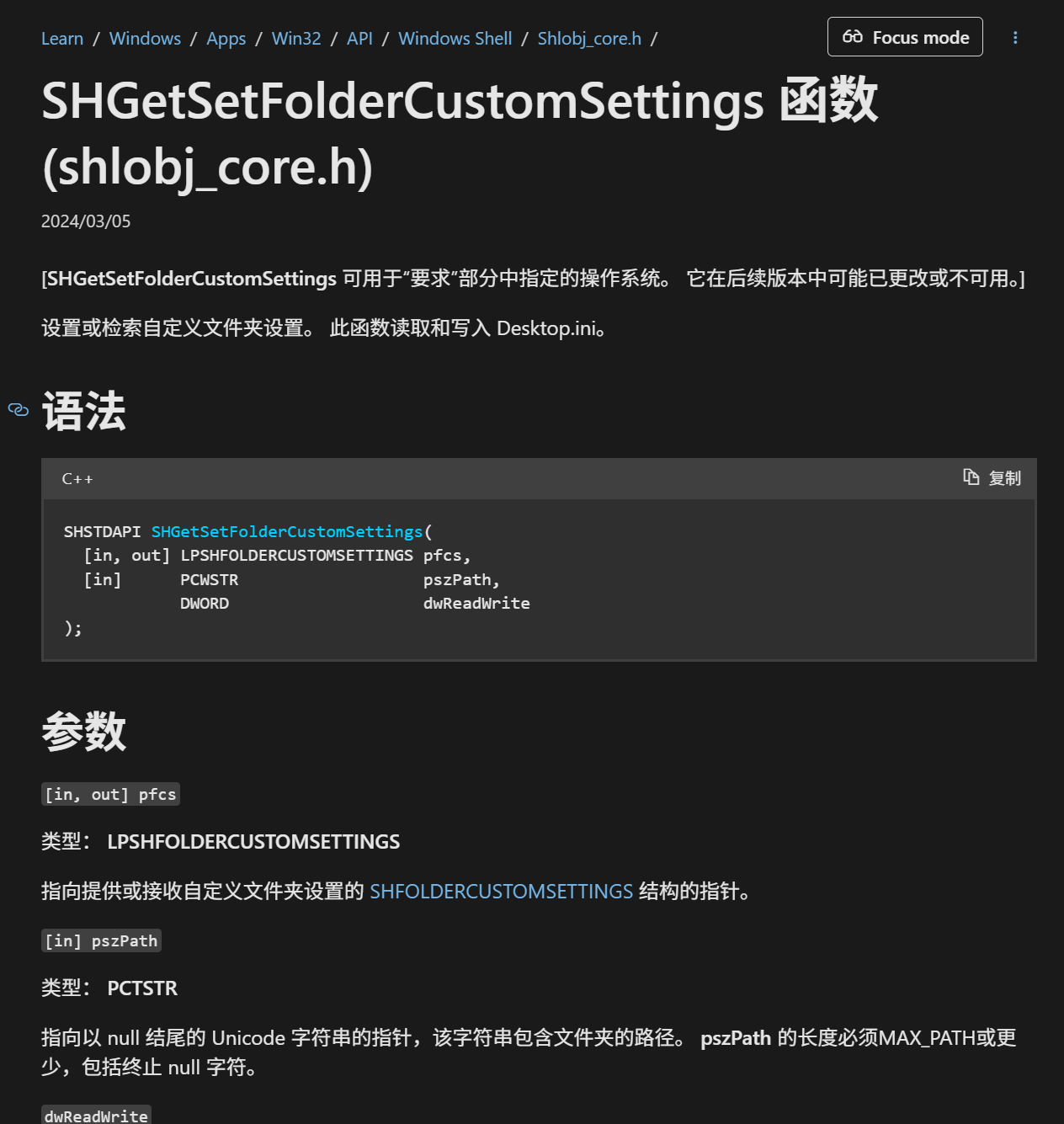
使用方法:
将以上代码粘贴到Quicker的C#模块,并创建变量“文件夹路径”(用于向此C#脚本传递需要刷新的文件夹路径),并写入desktop.ini后,执行一次此脚本,即可刷新文件夹的外观(全部属性)。
但是,经过个人测试,发现此函数对于目标文件夹的父级文件夹使用,也能触发 文件夹外观属性缓存 的刷新,所以说对于批量刷新文件夹图标的情况,先循环写入所有目标文件夹desktop.ini后,再对这些文件夹的父级文件夹执行一次上方代码,会更为高效。

 京公网安备 11010502053266号